Knowledge
The Ultimate Unreal Engine Shortcut Reference Guide
UE5 Reference
Built for game developers, technical artists, level designers, and real-time 3D creators.
This Unreal Engine shortcut guide is designed to speed up everyday editor workflows
and keep essential UE5 hotkeys within easy reach.
Whether you’re building environments, editing Blueprints, creating materials,
lighting scenes, or working in Sequencer, this reference helps you find the right shortcut quickly.
A categorized, searchable hotkey guide for Unreal Engine viewport navigation, actors, level editing, Blueprints, materials, content browsing, Sequencer, lighting, rendering, and editor productivity.
No matching shortcuts found.
Selection & Actors
Left Mouse Click
Select Actor
Ctrl + Left Click
Add or remove Actor from selection
Shift + Left Click
Add Actor to selection
Ctrl + W
Duplicate Selected Actor
Alt + Drag Transform Gizmo
Duplicate Actor while moving
Delete
Delete Selected Actor
F2
Rename Selected Actor or Asset
Ctrl + G
Group Selected Actors
Shift + G
Ungroup Actors
Ctrl + Shift + G
Regroup Actors
H
Hide Selected Actors
Ctrl + A
Select All in the current panel or context
Esc
Cancel current operation or clear tool state
Level Editing
End
Snap Selected Actor to Floor
V + Drag
Vertex Snap while moving an Actor
Middle Mouse Drag on Pivot
Move Actor Pivot Temporarily
Ctrl + Z
Undo
Ctrl + Y
Redo
Ctrl + S
Save Current Level
Ctrl + Shift + S
Save All
Ctrl + B
Browse to Selected Asset in Content Browser
Ctrl + P
Quick Open Asset / Search
`
Open Console Command Bar
Alt + Drag
Duplicate while transforming
F
Frame selected Actor in the viewport
Blueprint Editor
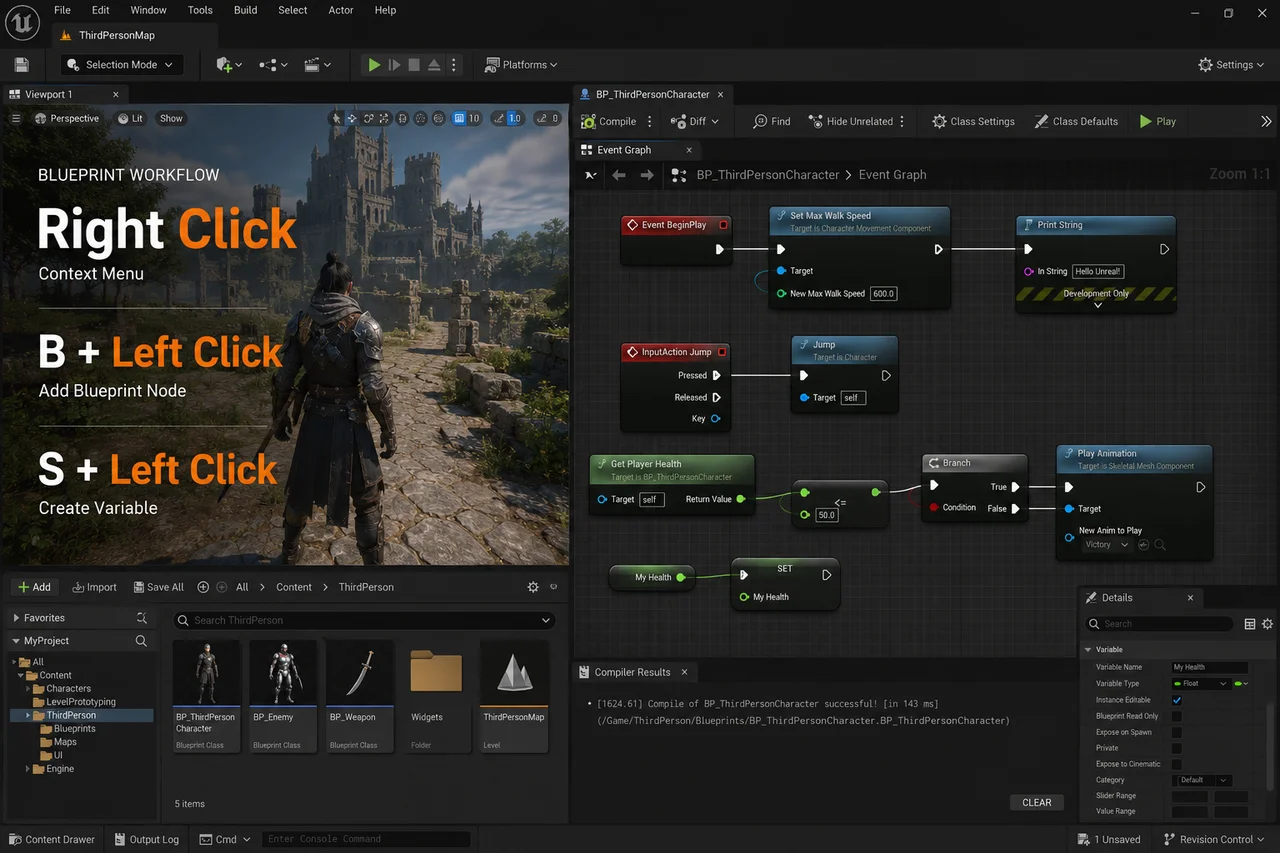
Right Click
Open Blueprint Action Menu
B + Left Click
Add Branch Node
S + Left Click
Add Sequence Node
D + Left Click
Add Delay Node
F + Left Click
Add ForEach Loop Node
P + Left Click
Add Event BeginPlay Node
Ctrl + W
Duplicate Selected Node
Ctrl + C
Copy Selected Node
Ctrl + V
Paste Node
Delete
Delete Selected Node
C
Create Comment Box around selected nodes
F
Focus Selected Nodes
Home
Frame All Nodes
Alt + Drag Pin
Break or reroute connection depending on context
Material Editor
Right Click
Open Material Node Search
A + Left Click
Add Add Node
M + Left Click
Add Multiply Node
L + Left Click
Add Linear Interpolate / Lerp Node
T + Left Click
Add Texture Sample Node
1 + Left Click
Add Constant Node
2 + Left Click
Add Constant2Vector Node
3 + Left Click
Add Constant3Vector Node
4 + Left Click
Add Constant4Vector Node
U + Left Click
Add Texture Coordinate Node
P + Left Click
Add Panner Node
S + Left Click
Add Scalar Parameter Node
V + Left Click
Add Vector Parameter Node
C
Create Comment Box
F
Focus Selected Node
Content Browser
Ctrl + Spacebar
Open Content Drawer
Ctrl + P
Search and open Assets
F2
Rename Asset
Ctrl + D
Duplicate Asset
Delete
Delete Asset
Ctrl + C
Copy Asset
Ctrl + V
Paste Asset
Ctrl + B
Browse to selected Asset
Right Click
Open Asset Context Menu
Enter
Open Selected Asset
Backspace
Go to Parent Folder
Animation & Sequencer
Spacebar
Play / Pause Sequencer
K
Add Keyframe
S
Set Key / Transform Key depending on context
Left Arrow
Previous Frame
Right Arrow
Next Frame
Home
Frame Sequence Timeline
Ctrl + Left Arrow
Jump to Previous Key
Ctrl + Right Arrow
Jump to Next Key
I
Set In Point
O
Set Out Point
Delete
Delete Selected Key or Section
Lighting & Rendering
G
Game View for cleaner lighting preview
F11
Fullscreen Viewport
Ctrl + R
Refresh / Recompile depending on editor context
Alt + 4
Lit View Mode
Alt + 3
Unlit View Mode
Alt + 2
Wireframe View Mode
Alt + 5
Detail Lighting View Mode
Alt + 6
Lighting Only View Mode
Ctrl + L
Rotate Directional Light with mouse in viewport
High Resolution Screenshot Tool
Use from viewport menu for still capture
Movie Render Queue
Use for final cinematic rendering
Playtesting & Simulation
Alt + P
Play in Editor
Esc
Stop Play in Editor
F8
Eject or Possess Player during PIE
Alt + S
Simulate
Shift + F1
Release Mouse Cursor during Play in Editor
`
Open Console during Play
~
Open Console on some keyboard layouts
Ctrl + P
Play / Quick Asset Search depending on focused panel
Productivity & Interface
Ctrl + N
Create New Level / New Asset depending on context
Ctrl + O
Open Level / Asset
Ctrl + Tab
Switch between open editor tabs
Ctrl + Shift + Tab
Switch editor tabs in reverse
Ctrl + F
Find in current editor
Ctrl + Shift + F
Find in Blueprints / Find in Files
Shift + F5
Open Level Editor / Return to main viewport
F1
Open Documentation / Help depending on context
Ctrl + .
Open command or action search depending on editor setup