
Knowledge
After Effects Plugin Face Director — Making Facial Expression Changes This Easy in Videos
When a shot has already been filmed, small facial performance problems can become surprisingly expensive. A smile may not match the emotional tone, the actor’s gaze may drift away from the intended subject, or a continuity cut may break because the mouth or eyes do not match the surrounding shots. Face Director is designed for that specific post-production problem: adjusting facial performance details after the footage has already been captured.
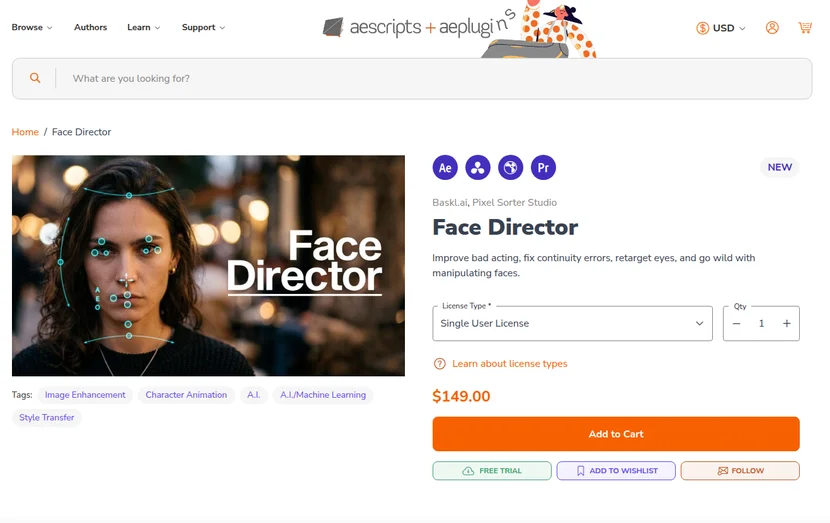
The important point is not that Face Director replaces acting or reshoots entirely. It is better understood as an AI-assisted correction and performance-polishing tool. Used carefully, it can help save shots, improve continuity, and create stylized facial animation. Used carelessly, it can make footage feel artificial or ethically questionable.
Face Director for After Effects — What It Actually Does
Face Director is an AI-powered facial performance editing plugin from Baskl.ai / Pixel Sorter Studio. According to the official product page, it can animate facial expressions, eye direction, head direction, and neck height. It also supports direct manipulation in the preview window, which means you can adjust parts of the face by dragging them rather than building a complex facial rig from scratch.
This places Face Director somewhere between classic face tracking, AI-assisted retouching, and facial performance editing. It is not a full face replacement system, and it should not be treated as a deepfake workflow. Its practical value is in adjusting expression, gaze, and continuity while keeping the original footage as the base.
Where Face Director Fits in a Real Editing Workflow
In a professional edit, facial performance issues are usually discovered late. The edit is locked, the client notices a strange glance, or a cut feels emotionally inconsistent. Traditional fixes might involve choosing another take, masking, warping, using Liquify-style tools, or requesting a reshoot. Face Director adds another option: direct facial adjustment inside supported host applications.
The plugin is especially relevant for editors, motion designers, and VFX artists working on interviews, commercials, short films, YouTube videos, and social content. It can also be useful when a director wants a slightly more neutral expression, a clearer eyeline, or a stronger reaction without rebuilding the shot from scratch.
| Situation | Good Fit? | Why |
|---|---|---|
| Minor expression mismatch | Yes | Useful for subtle performance correction |
| Eye direction continuity | Yes | Gaze can be retargeted when the shot allows it |
| Comedy or stylized video | Yes | Extreme expressions can be used creatively |
| Poorly lit or tiny face | Weak fit | Detection and quality may suffer |
| Replacing an actor’s performance | No | Too much semantic and ethical risk |
| Documentary or interview meaning change | Be careful | Facial changes can alter perceived intent |
Core Features: Expression, Gaze, Head Direction, and Neck Height
The official description highlights four major areas: facial expression, eye direction, head direction, and neck height. In practical terms, this means the plugin is not only for making someone smile. It can also help correct where the subject appears to be looking, adjust small head-direction issues, and refine the overall performance of a face in a shot.
For example, in an interview, a subject’s gaze may drift slightly away from the intended eyeline. In a commercial, a model’s smile may look too strong in one cut and too neutral in the next. In a narrative scene, a continuity cut may feel wrong because the face changes too abruptly. These are the kinds of problems where Face Director can be worth testing.
| Feature | Useful For | Watch Out |
|---|---|---|
| Expression controls | Smile, smirk, intensity, emotional tone | Overdoing it can look uncanny |
| Eye direction | Gaze continuity and eyeline fixes | Large changes may look artificial |
| Head direction | Small orientation correction | Not a full 3D head replacement |
| Neck height | Subtle pose/performance refinement | Footage quality still matters |
| Direct dragging | Fast preview-based adjustments | Small movements usually work best |
Puppet Mode: Driving Facial Motion from Another Layer
One of the more interesting features is Puppet Mode. The official aescripts description says it can use another layer as a driver video. This means another video layer can guide facial motion or expression behavior, which opens the door to timing experiments and stylized facial animation.
However, Puppet Mode should not be described as full face replacement. It is better framed as performance driving or expression guidance. If you write about it as if it can simply transfer one actor’s entire face or identity to another, readers may misunderstand what the tool is meant to do.

What Face Director Should Not Be Used For
Face Director can be powerful, but it is not magic. It cannot turn poor footage into perfect footage in every case. If the face is too small, heavily blurred, badly lit, occluded, or turned too far away from camera, the result may not hold up. The cleaner the source footage, the more believable the correction is likely to be.
It is also not a replacement for good acting, good direction, or good editing. Think of it as a post-production rescue and refinement tool. If a shot needs a small correction, it can be very useful. If the performance is fundamentally wrong, you may still need another take, a different edit, or a more involved VFX workflow.
Basic Workflow in After Effects
The basic workflow is simple in concept. Apply the Face Director effect to a shot with a clearly visible face, let the plugin detect and analyze the face, then adjust facial controls directly in the preview or through available parameters. If the expression needs to change over time, keyframe the controls and review the result in motion.
- Prepare clean footage — Use a shot where the face is visible, reasonably sharp, and not heavily occluded.
- Apply Face Director — Add the plugin to the target layer inside the supported host application.
- Check detection — Make sure the face is recognized before spending time on detailed animation.
- Make small adjustments first — Start with subtle expression, gaze, or head-direction changes.
- Keyframe only where needed — Avoid unnecessary keyframes; facial edits should feel motivated by the shot.
- Review in motion — A still frame may look acceptable while the moving shot feels artificial.
Pricing, Trial, Compatibility, and Version Notes
Face Director is sold through aescripts and Pixel Sorter Studio. Pricing can change, so avoid relying on old sale prices. The safer approach is to check the official product page before purchasing. A free trial is available, which is important because facial-editing tools are highly footage-dependent.
Compatibility is one of the plugin’s strengths. The official page lists support for After Effects, Premiere Pro, DaVinci Resolve, and Nuke, with Mac and Windows support. Before buying, check the current compatibility table for your exact host application and version.
The 2026 version history is also worth noting. The official aescripts page lists backend and performance-related updates, including a new backend in version 1.10.0 and later bug fixes and performance improvements. That matters because AI-assisted facial analysis and rendering can be sensitive to version changes.
| Check | Why It Matters | Action |
|---|---|---|
| Host application | Compatibility changes over time | Check the official table |
| Free trial | Results depend on footage | Test with your own clips |
| Face visibility | Detection quality depends on source | Use clear, well-lit shots |
| Render time | AI processing can be heavier | Test a short range first |
| Ethics and consent | Facial edits can change meaning | Confirm permission and context |
Ethical Use: Facial Editing Needs Consent and Context
Because Face Director changes facial performance, ethical use matters. In narrative VFX or commercial production, this kind of correction may be part of the approved post-production process. In interviews, documentaries, news, or testimonial content, changing facial expression can alter meaning.
This is where editors need judgment. Just because a tool can change a face does not mean every change is appropriate. Use facial editing with consent, clear context, and editorial responsibility. The more realistic the result becomes, the more important that responsibility is.
Final Takeaway: Who Should Pay Attention to Face Director?
Face Director is most valuable when the problem is subtle: a gaze that needs to shift, a smile that needs to be softened, a continuity error between cuts, or a performance detail that needs a small post-production adjustment. It is not a magic replacement for good footage, good acting, or editorial judgment.
For editors, motion designers, and VFX artists, the plugin is worth watching because it brings facial performance editing directly into familiar tools like After Effects, Premiere Pro, Resolve, and Nuke. The best approach is to test it with the free trial, use it on real footage, and judge whether the results stay believable at the resolution and render settings your project requires.