
3D Graphics
Claude MCP Directly Controls 3D Software — Changes in the Creative Industry
Have you ever wanted to create a 3D model but found programs like Blender too difficult? Or are you experiencing the hassle of having to contact a modeler every time you request modifications? Now, with Claude AI and MCP technology, you can automatically generate and directly edit 3D models using just text. After reading this article, you’ll be able to make AI your assistant in 3D software.
Claude MCP Directly Controls 3D Software — Transforming the Creative Industry
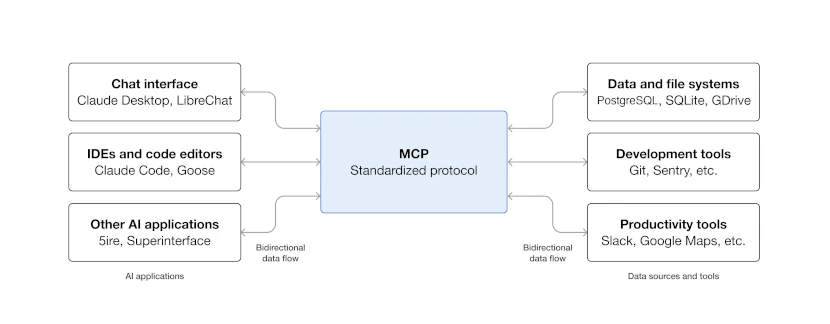
Claude MCP (Model Context Protocol) is a standard communication protocol that connects AI with external programs. Simply put, think of it as a “gateway” that allows AI to control 3D software like Blender on your computer as if you were directly manipulating it with your hands.
For example, if you tell Claude “Create a 3D model shaped like a Korean pagoda,” Claude will automatically open your Blender software, create objects, apply materials, add lighting, and finally save the file. This entire process can be completed in just about 3 minutes.
The reason this is transforming the creative industry is simple. Previously, whenever you wanted a complex 3D model, you had to hire a professional modeler or spend weeks learning to create it yourself. But now, the moment you conceive an idea, AI turns it into reality. In fields like game development, architectural visualization, and product design, prototype production speed can increase by more than 10 times.
Claude MCP Directly Controls 3D Software — Transforming the Creative Industry Tutorial Usage
To use Claude MCP, three things need to be connected. The first is the Claude desktop app (the host, the program containing the AI), the second is Blender (3D software), and the third is the Blender MCP add-on (the bridge connecting the two).
Here’s how it actually works. When you ask Claude “Could you add some more complex roof details?”, Claude automatically opens Blender and performs specific tasks by navigating menus. You can request complex structures like Gyeongbokgung Palace’s Geunjeongjeon Hall, but the current free version of Claude has conversation length limitations, so it may stop after multiple revisions. If you want more refined results, it’s better to use the Pro version or proceed in several sessions.
Additionally, you can create more sophisticated results by using free asset sites like Poly Haven for materials, or using AI 3D generation tools like Hyper3D Rodin together.
Claude MCP Directly Controls 3D Software — Transforming the Creative Industry Step-by-Step Setup Guide
Now let’s follow the steps to actually install and connect everything. It may look complicated at first, but just follow each step carefully.
- Installing the Claude Desktop App
You cannot use MCP on the web version of Claude (claude.ai). You must install the desktop app. Go to claude.ai/download and download and install the version for your operating system (Windows or Mac). - Installing Node.js
Node.js, a JavaScript runtime environment, is required for the MCP server to work. Download and install the LTS (stable) version from nodejs.org. After installation, if you type node –version in the command prompt (Windows) or terminal (Mac) and see a version number, the installation is successful. - Installing Blender
Download and install the latest version from www.blender.org (4.4.0 or higher as of 2026). After installation, open it once to verify it’s working properly. - Downloading the Blender MCP Add-on
Download the addon.py file from github.com/ahujasid/blender-mcp. This file acts as the “bridge” connecting Blender and Claude. - Editing Claude Desktop Settings
Open the Claude desktop app and click the settings icon (gear-shaped) in the top left. Open the Developer tab and an Edit Configuration button will appear. Click it to open claude_desktop_config.json - Entering Blender MCP Information in the JSON File
Add the following code to the open JSON file. If there’s existing content, separate it with a comma (,):
"mcpServers": {

  "blender": {

    "command": "node",

    "args": ["path/to/blender-mcp/index.js"],

    "env": {

      "BLENDER_EXECUTABLE": "path/blender.exe"

    }

  }

}
In this section, “path/blender.exe” should be replaced with the actual path where Blender is installed on your computer. For example, on Windows it would be something like “C:/Program Files/Blender Foundation/Blender 4.1/blender.exe”. - Restarting Claude Desktop
After saving the file, completely close the Claude desktop app and run it again. If a hammer-shaped icon (tool icon) appears in the bottom left, the MCP setup is successful. - Installing the Add-on in Blender
Open Blender and go to Edit → Preferences (or on Mac, Blender → Preferences). On the left, click Add-ons and then click the Install from Disk button to select the addon.py file you downloaded earlier. - Connecting the MCP Server in Blender
In Blender’s right panel (which you can open by pressing N), click the Connect button in BlenderMCP to connect Blender and Claude.
Things to Check After Installation: If you can see a hammer icon in Claude desktop and a “Connected” message appears in Blender’s panel, all connections are complete. If the connection fails, restart Blender or double-check that the path in the JSON file is correct.

Claude MCP Directly Controls 3D Software — Transforming the Creative Industry Workflow Tips
Now, how can you use this efficiently in practice? Here are some practical tips.
- ① Be specific, but break down requests into parts
Instead of “Create a Korean pagoda,” describe it part by part like “The base has four layers of square stones, an octagonal tower on top, and a bell-shaped spire at the very top.” This way AI can work more accurately. - ② Use materials with Poly Haven
Ask Claude, “Can you find a stone material from Poly Haven and apply it?” and it will automatically fetch and apply free high-quality textures. - ③ Convert images to text and request
If you can’t find the complex shape as a drawing, upload the image to Claude and ask “Can you create a 3D model that looks like this photo?” and it will convert it to text and create the model. - ④ Create complex models using Pro version or divided work
The free Claude has conversation length limitations, so for very complex models, it’s better to create them in multiple sessions. For example, for Gyeongbokgung Palace, you could create the building and roof parts separately and then combine them. - ⑤ Build a game asset generation pipeline
For game development, the efficient order is: Generate images with Google ImageFX → Convert to 3D mesh with Hyper3D Rodin → Add game engine-compatible textures with Claude MCP.
If you want to create something specific like Korean cultural heritage, show Claude photos from Wikipedia or museum websites and ask “Can you create something similar but simplified?” to get more accurate results.
Claude MCP Directly Controls 3D Software — Transforming the Creative Industry Error Warnings
Start Right Now
The possibilities of Claude MCP don’t end here. Complete the installation today and create your first 3D model. The experience of turning your ideas into reality will transform everything about 3D creation.