
AI Tools
How to Convert 3D Layouts to AI Animation with Seedance 2 and the Differences
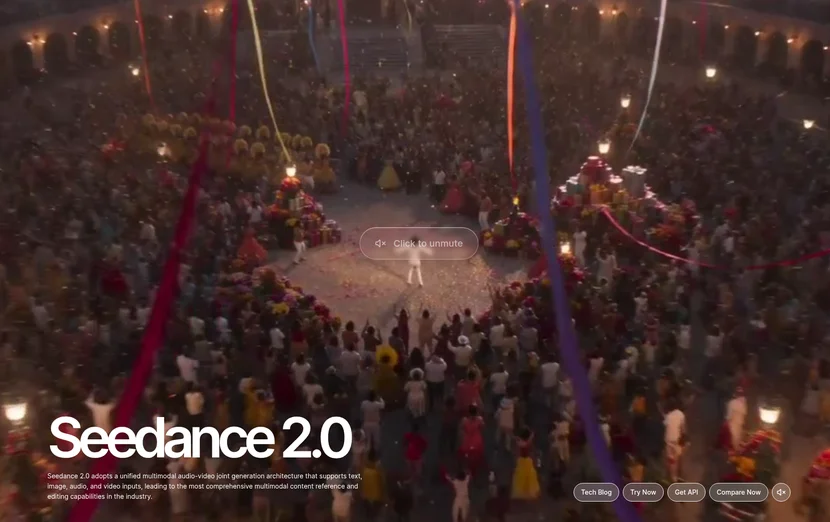
Seedance 2.0 is an AI video generation model that can create cinematic-quality videos by combining various inputs such as text, images, and videos. It is particularly powerful at transforming 3D layouts into natural AI animations. This article provides a step-by-step explanation of how to turn 3D layouts into real moving videos using Seedance 2.0 in a way that beginners can follow.
How to Convert 3D Layouts to AI Animation with Seedance 2
First, let’s understand what “converting 3D layouts to AI animation” means. A 3D layout refers to a still image created in 3D design software—a static scene with camera angles and object placement set. For example, fixed images of indoor spaces rendered in architectural visualization, game concept art, or 3D views of product design.
Traditionally, bringing life to these static 3D layouts required hours of work in 3D animation software (Maya, Blender, Cinema 4D, etc.). However, Seedance 2.0 dramatically shortens this process. Simply input a 3D layout image and describe the desired movement in text, and AI automatically generates natural camera movements and object animations.
Specifically, you use Seedance 2.0’s Image-to-Video feature. This function takes a still image as a starting point and generates 5-10 seconds of smooth animation following the movements and camera actions described in the prompt. It creates an effect as if the camera slowly pans around a fixed picture, or objects begin moving naturally.
How to Convert 3D Layouts to AI Animation with Seedance 2 Tutorial Usage
When starting with Seedance 2.0 for the first time, it’s important to choose the right platform. Currently, Seedance 2.0 is available on several platforms within China, and each offers different user experiences and features.
Jimeng AI (即梦) is the main platform that offers the most complete access to all Seedance 2.0 features. If you want to precisely control and convert 3D layouts to animation, we recommend this platform. In particular, it has an advanced feature called “Director Mode” that allows for fine-tuned adjustments such as camera movement intensity, screen movement speed, and referencing multiple images simultaneously.
Doubao (豆包) is mobile-friendly with a simplified interface. If you want quick and simple generation, this is a good choice. However, for 3D layout work requiring complex camera movements or advanced control, the Jimeng platform is more suitable.
Xiao Yun Que (小云雀) is a free trial platform, good for those wanting to try Seedance 2.0 for the first time. It provides new users with 3 free generation opportunities and 120 points daily.
The basic workflow is similar across all platforms. Create an account, access the video generation menu, and select “Seedance 2.0” as the model. Daily free points are automatically granted, consuming about 20 points for a 10-second video, allowing approximately 10 free tests per day.
How to Convert 3D Layouts to AI Animation with Seedance 2 Step-by-Step Configuration
Let’s walk through the process of actually converting a 3D layout to animation step by step. Follow this sequence:
- Access Seedance 2.0 Platform and Select Image-to-Video Mode
Log into Jimeng or Doubao and navigate to the video generation page. Among various modes (Text-to-Video, Image-to-Video, Multi-Frame, etc.), you must select “Image-to-Video” or “Generate Video from Image.” This is because you’ll be working based on 3D layout images. - Upload 3D Layout Image
Upload your prepared 3D layout image. The image should be as high-resolution as possible (2K or higher recommended), with a clean background or from an angle that shows movement well. For example, if it’s an architectural interior 3D rendering, choose a shot with a camera angle that expresses the depth of the space well. - Set Video Format (Aspect Ratio, Length, Resolution)
Configure settings based on the platform where you’ll post. For Instagram Reels, select 9:16; for YouTube Shorts, 9:16; for standard YouTube or websites, 16:9. For initial testing, set the length to 5 seconds. Shorter videos generate faster and are easier to revise. During iterative work, keep the resolution standard (SD) or default, and only regenerate in high resolution (HD, 2K) when creating the final result. - Write Prompt – Describe Specific Movements
This is the most important step. Write a detailed description in English of what movements and camera actions you want applied to your uploaded 3D layout image. Using cinematic language rather than simple descriptions produces much better results. This is where video creation technique differs and skill levels diverge.For example:
Architectural Interior 3D Layout: “Slow pan across the modern living room, camera moves from left to right. Soft natural light streams through large windows. Smooth tracking shot, cinematic 24mm lens, warm daylight. Subtle camera movement, no jitter, 5 seconds.”
Product Design 3D View: “Product slowly rotates on a clean white background. Camera orbits 180 degrees around the product from left to right. High-key studio lighting, 4K quality, smooth motion, product details clearly visible, 5 seconds.”
Game Environment 3D Layout: “Camera dolly zooms into the center of the futuristic city scene. Cinematic depth of field, warm neon lighting, cyberpunk aesthetic. Smooth camera movement, maintain environment detail, 5 seconds.”Including these elements in your prompt yields more accurate results: camera movement type (pan, zoom, dolly, orbit, etc.), camera speed (slow, smooth, gentle, etc.), shooting technique (cinematic, wide angle, 35mm film, etc.), lighting and color (lighting, warm, golden hour, etc.), video length.
- Generate Video and Preview
After writing your prompt, click the generation button. Wait 30 seconds to a few minutes as AI creates moving footage based on your 3D layout. If you’re unhappy with the result, you can modify the prompt or change the “Seed” value to generate a different version. - Compare Results and Optimize
Don’t run Seedance 2.0 just once and evaluate. Create 2-4 versions with slightly different prompts and compare them. Check which version has the most natural camera movement and which better expresses the details of the 3D objects. Select the best version and, if needed, render the final version in high resolution.
Prompt Iteration Cycle
Creating a perfect prompt from the start is difficult. We recommend the following iteration cycle: (1) Start with a simple prompt → (2) Check results → (3) Identify shortcomings → (4) Add details to prompt → (5) Generate again. Usually, 3-5 iterations yield satisfactory results.

How to Convert 3D Layouts to AI Animation with Seedance 2 Workflow Tips
To use Seedance 2.0 effectively, you need practical tips beyond simple steps. Here are tips that actually work:
- ① Leverage Multiple Image References: One of Seedance 2.0’s most powerful features is the ability to reference up to 9 images simultaneously. For example, besides your main 3D layout image, you can upload desired color palette references, film stills showing camera movement style, lighting atmosphere images, and more. Specifying in your prompt “Reference Image1 for the main scene, Image2 for the color palette, Image3 for the camera movement style” yields more accurate results.
- ② Use Camera Movement Terminology Accurately: When describing camera movements in prompts, using film terminology helps AI understand better. Key terms include “Pan” (horizontal camera rotation), “Tilt” (vertical camera rotation), “Dolly” (camera moves forward/backward), “Zoom” (lens magnification/reduction), “Orbit” (camera moves in a circle around an object), etc. Something like “Slow dolly-in from the entrance, then gentle orbit around the central feature” is sufficiently clear.
- ③ Specify Optical Lens Specs: Including lens information used when creating the 3D layout (or desired cinematic lens) in your prompt results in consistent results. Express this with terms like “35mm cinematic lens” (film-like feel), “24mm wide angle” (wide view), “50mm prime” (natural perspective), etc.
- ④ Set Lighting and Time of Day: To ensure the lighting in the animation matches your 3D layout, you must specify it clearly in the prompt. Expressions like “Golden hour warm lighting,” “Blue hour evening atmosphere,” “Studio key lighting,” “Natural soft window light” are effective.
- ⑤ Specify Static Environment When Needed: If you want to maintain the structure and arrangement of your 3D layout with only camera movement, include phrases like “Static environment, only camera movement” or “No object motion, camera only” in your prompt. Conversely, if you want subtle animation effects (e.g., flowing water, particle movement), specify something like “Subtle environmental motion like flowing water.”
- ⑥ Video Length and Point Efficiency: A 5-second video consumes about 20 points, while 10 seconds consume about 40 points. Always set 5 seconds during testing for rapid iteration. Only extend to 10 seconds when you’ve achieved satisfactory results. This ensures efficient point usage.
Due to ethical concerns, Seedance 2.0 restricts its ability to generate videos by referencing real human faces. When using 3D layouts containing characters or people, it’s best not to reference facial features specifically. Instead, use expressions like “generic character,” “silhouette,” “back view,” or choose angles where faces aren’t clearly visible.

How to Convert 3D Layouts to AI Animation with Seedance 2 Error Precautions
Here’s a summary of common issues beginners encounter when converting 3D layouts to animation with Seedance 2.0 and how to solve them.
Problem 1: Results look completely different from the original 3D layout
Reason: The prompt is too abstract or doesn’t describe the characteristics of the 3D layout. Seedance 2.0 tends to interpret creatively when relying solely on the prompt.
Solution: Make it clear that the Image-to-Video mode is based on the uploaded image. Include expressions like “Based on the uploaded 3D layout, maintain the spatial arrangement and architectural details” in your prompt. Also, specifically mentioning the main colors, textures, and objects of the 3D image in the prompt increases consistency.
Problem 2: Camera movement feels unnatural or shaky
Reason: You requested movement that was too fast or complex, or didn’t precisely specify the type of camera movement.
Solution: Always include expressions like “smooth camera motion,” “no jitter,” “stable movement” in your prompt. Specify movement speed with words like “slow,” “gentle,” “subtle.” In initial testing, specify a single camera movement (e.g., dolly-in only or pan only), and when wanting multiple types of movement, describe each sequentially.
Problem 3: Lighting or color palette differs from the original
Reason: AI reinterprets colors during the generation process.
Solution: Use the multiple image reference feature and upload a reference image with your desired color palette. In your prompt, specifically state things like “maintain the warm color palette from the original image” or “preserve the cool blue tone of the environment.” Specifying a particular lighting type (e.g., “tungsten warm light,” “daylight neutral”) also helps.
Problem 4: Prompt is too long or complex and seems off
Reason: Seedance 2.0 better understands clear and concise prompts.
Solution: Simplify your prompt to 1-2 sentences. Include only essential elements (camera movement, lighting, lens type, length) and remove unnecessary details to get predictable results. Something like “Slow dolly-in through the modern interior, warm natural light, cinematic 35mm, smooth motion, 5 seconds” is sufficient.
Problem 5: Generation takes too long
Reason: Could be due to high resolution settings, long video length, or server load.
Solution: Always use standard resolution and 5-second length during testing stages. If it takes too long, try changing the seed value to attempt generation from a different queue. Additionally, generating during off-peak hours (early morning Korea time) may be faster due to lighter server loads.
Error Testing Prompt
When problems occur, first return to a very simple prompt. Example: “Camera slowly moves through the scene, warm lighting, smooth motion, 5 seconds.” If this basic prompt works normally, you can identify which parts of the complex version caused issues.