
3D Graphics
Why Use NURBS in Maya? — What’s the Difference from Polygons?
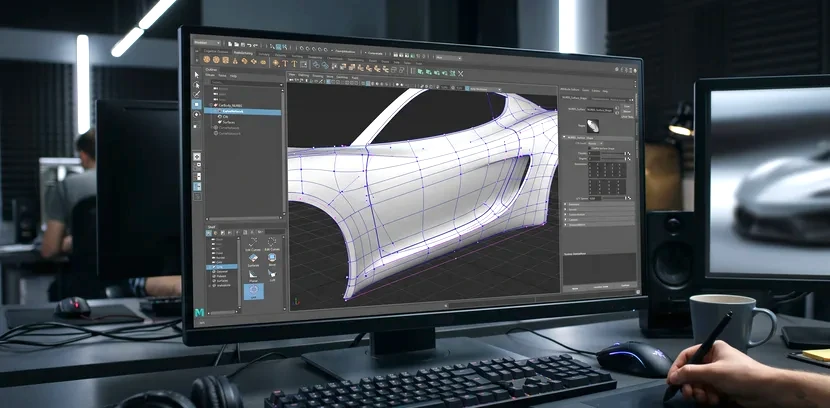
Why Use NURBS in Maya? — What’s Different from Polygons
The first choice you face when creating 3D models in Maya is whether to use “NURBS” or “Polygons.” Simply put, polygons are objects made by combining flat pieces together, while NURBS is a method that uses curves to create smooth surfaces.
To use a real-world analogy, you can think of polygons as a way to express the shape of an object by stacking multiple sheets of paper. The more sheets you have, the smoother curves you can create, but they always consist of angular flat surfaces. On the other hand, NURBS is like stretching an elastic rubber sheet to create a shape. Because it’s expressed in smooth curves from the start, it can create a smooth surface with incomparably less information.
If you create a polygon sphere in Maya and zoom in close, you’ll see many small triangular and quadrilateral flat surfaces attached to each other. Similarly, when you create a NURBS sphere, you’ll see a smooth curved surface. To achieve the same level of smoothness with polygons, you’d need to add many more faces.
Advantages and Disadvantages of Using NURBS
The most obvious advantage of using NURBS is that you can represent smooth curved surfaces with very little information. For example, when creating round objects like wine glasses, vases, or bowls, NURBS is really efficient. These objects consist only of smooth, consistent curves, which perfectly matches the characteristics of NURBS.
However, NURBS has significant limitations. The main one is that it cannot express “hard edges.” Because NURBS is fundamentally made of curves, no matter how hard you try, you can’t create angular edges. Additionally, it’s difficult to add high-level details (for example: wrinkles, bumps, complex patterns). The reason polygons are used much more often in actual production work like games, films, and advertisements is precisely because of this.
The control methods for NURBS and polygons are completely different. In polygons, you can select vertices and control them individually, and moving one vertex has little effect on surrounding vertices. In NURBS, however, you control control vertices (CVs) or edit points, and these affect surrounding curves to create smoother and more natural deformations.
Why Use NURBS in Maya? — What’s Different from Polygons Tutorial Usage
Let’s try using NURBS for the first time in Maya. Starting by creating a NURBS curve, you can create a surface in the next step. First, let’s learn how to create a basic curve.
- Open the Create menu from Maya’s main menu and find Curve Tools.
- Click on CV Curve Tool. This is the most basic way to create curves by directly placing control vertices.
- In the viewport (screen), click with the left mouse button to place control points. Each click location becomes an influential point that the curve passes through.
- After placing as many points as you want, press Enter to complete the curve creation.
- Select the created curve and right-click to open the menu and switch to Control Vertices. Now you can control the shape of the curve.
- Drag the control points to freely deform the curve shape. When you move a point, the surrounding curve naturally follows.
Once you’ve created multiple curves, you can now use these curves to create a surface. For example, to create a wine glass shape, create several circular curves and arrange them from top to bottom, then connect them with the Loft tool.
To use the Loft tool, first select the curves to connect in order (click while holding the Shift key). Then select Surface menu > Loft, and a surface that smoothly connects the selected curves is automatically generated.
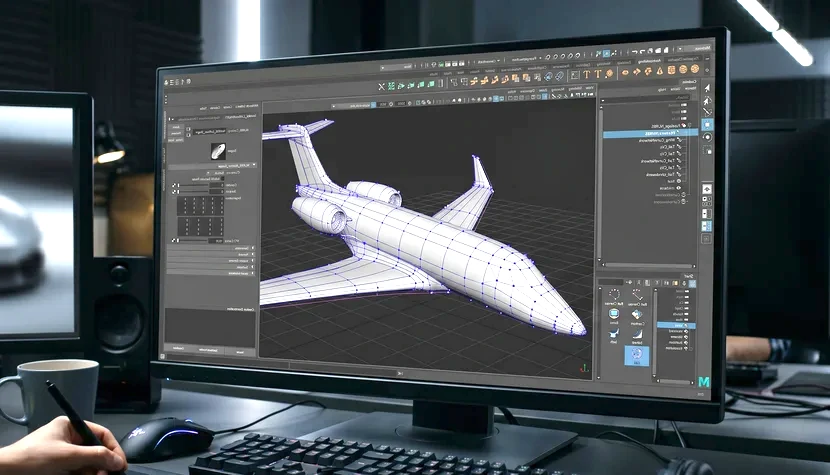
Why Use NURBS in Maya? — What’s Different from Polygons Step-by-Step Setup Method
To use NURBS effectively, you need to understand basic settings and parameters. In particular, the degree of the curve and knot span determine the smoothness and controllability of the curve.
If the settings window doesn’t appear when you select the CV Curve Tool, right-click on the tool or click the small square icon in the lower right to open Tool Settings.
- ①Degree Setting: Usually select 3 (cubic curve). The higher the number, the smoother the curve becomes, but it becomes harder to control. For beginners, 3 or 5 is recommended.
- ②Knot Spacing: Select “Uniform” to create curves at regular intervals. This is the most predictable and easiest to use.
- ③End Knots: Setting to “Clamped” ensures the curve passes through exactly the first and last points. This is generally the desired result.
- ④Curve Type: You can choose between “CV” or “EP”. “EP (Edit Point)” is more intuitive for beginners because the curve passes exactly through the points.
When creating surfaces, the number and direction of curves is important. When creating a surface with Loft, the selected curves must face the same direction. If the curve directions are reversed, a twisted surface can be created. To check this, look at the arrow direction shown on the curve when it’s selected.
Why Use NURBS in Maya? — What’s Different from Polygons Workflow Tips
Professional 3D modelers actually mix NURBS and polygons depending on the situation in real work. This is called “hybrid workflow.”
- ①Establishing Initial Form: First create smooth main shapes like wine glasses or car bodies with NURBS. At this stage, you define the overall silhouette and curves.
- ②Convert to Polygons: Once the basic form is complete with NURBS, use Modify > Convert > NURBS to Polygons to convert to polygons. You can adjust the number of faces at this time.
- ③Add Detail: After converting to polygons, add detailed details like wrinkles, holes, and complex shapes using polygon modeling.
- ④Final Rendering: Use the final polygon model when exporting to game engines or rendering software.
The smoothness of a NURBS surface depends on the number of control points. Fewer control points create simpler, smoother shapes, while more allow you to create more complex forms. It’s good to keep control points to a minimum when first creating, and add points when more precise control is needed. This prevents unwanted wrinkles from occurring by mistake during the modeling process.
Also, when aligning NURBS curves, it helps to use the Snap to Grid function. Select a point, press the X key, and drag with the middle mouse button to automatically align the selected point to the nearest grid intersection. This way, you don’t need to manually enter precise coordinate values.
Why Use NURBS in Maya? — What’s Different from Polygons Errors and Precautions
The most common mistake when creating surfaces from multiple curves is that the curve directions don’t match. If some curve directions are opposite, the Loft tool will automatically detect this and display an error message. In this case, deselect the curves and select them again in the correct order. Or right-click on the problematic curve and select “Reverse Curve Direction” to change its direction.
Beginning users tend to place too many control points out of a desire to create curves “accurately.” This can cause the curve to zigzag or create unexpected bumps. The correct method is to establish the basic shape with a minimum number of points initially, and add points if needed.
NURBS is fundamentally specialized for smooth surface creation. If you try to create high-level details (deep wrinkles, small holes, complex patterns, etc.) with NURBS, many control points will be needed, making the model complex. It’s much more efficient to add such details by converting NURBS to polygons and then using polygon modeling techniques.
If your model requires sharp edges or angular forms, NURBS cannot represent this effectively. Forms that need straight lines and angles, like boxes or mechanical parts, should be modeled in polygons from the start, or converted to polygons after being made in NURBS and polygon modeling techniques should be used.
Also, be careful when exporting NURBS models from Maya to other software. Many 3D game engines (Unity, Unreal Engine) and film rendering software don’t directly support NURBS. Therefore, you must convert to polygons before exporting. When converting, use Modify > Convert > NURBS to Polygons and adjust the number of polygons in the “Tesselation” option. The higher you set “Number of U/V Points,” the more faces are generated in the resulting detailed polygon model.
Start in Maya right now
Apply what you’ve learned in this article right away. Start by creating a simple wine glass or vase with NURBS, and you’ll feel the difference between NURBS and polygons with your own hands. It may be difficult at first, but you’ll become familiar with it quickly after a few repetitions.