
3D Graphics
Unreal Engine Material Editor: Your First Hour – A Beginners Guide to Creating Dynamic Textures
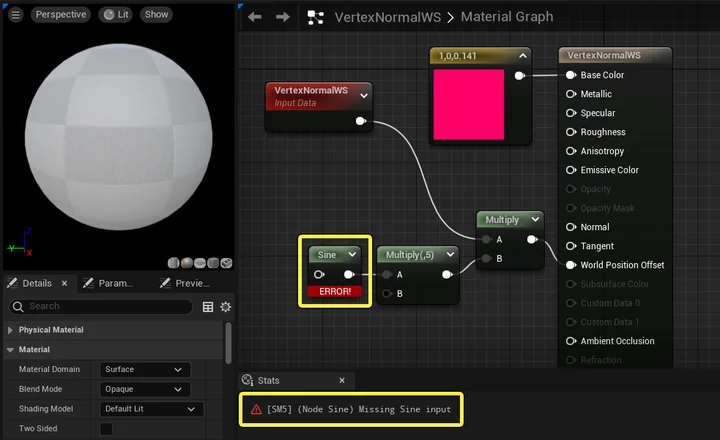
🎨 Unreal Engine Material Editor: Your First Hour
A Beginner’s Guide to Creating Dynamic Textures
The Material Editor in Unreal Engine is a powerful, node-based tool that defines how light interacts with the surfaces of your 3D models. This guide will help you master the basics, from setting up your first material to creating real-time dynamic effects.
💡 Key Concepts
-
Node-Based System: Define properties like color, texture, and light response by connecting various functional nodes.
-
Seamless Workflow: Quickly create assets by right-clicking in the Content Browser and selecting “Material.”
-
Real-Time Interactivity: Use Parameters and Instances to change material properties on the fly through Blueprints.
-
Visual Detail: Enhance realism by connecting textures to essential inputs such as Base Color, Roughness, and Normal maps.
🛠 Step-by-Step: Material Creation Process
1. Project Setup & Material Creation
-
Step 1: Launch Unreal Engine (Version 5.7 or newer). The “Intro to Unreal” template is highly recommended for beginners.
-
Step 2: In the Content Browser, right-click and select [Material]. Give it a descriptive name (e.g.,
M_BasicColor). -
Step 3: Double-click the asset to open the Material Editor graph.
2. Defining Color with Nodes
-
Add Color: Right-click in the graph and search for “Constant3Vector.” This node represents an RGB color value.
-
Select Color: Click the color bar on the node to open the color picker and choose your desired shade.
-
Connect: Drag the output pin of the Constant3Vector and plug it into the Base Color input of the Main Material node.
3. Working with Textures
-
Import: Drag and drop your image files directly into the Content Browser.
-
Texture Sample: In the Material Editor, add a “Texture Sample” node.
-
Assign: With the node selected, go to the Details Panel and select your imported texture. Connect the output pin to Base Color or other relevant inputs.
4. Controlling Properties & Instancing
-
Add Parameters: Create a “Scalar Parameter” node and name it
RoughnessValue. -
Control Roughness: Connect it to the Roughness input. This allows you to control how shiny or matte the surface appears.
-
Create Instance: Right-click your material in the Content Browser and select [Create Material Instance].
-
Note: Using Instances allows you to tweak values in real-time without recompiling the base material.
-
5. Dynamic Control via Blueprints
-
Open your Level Blueprint or the specific Actor Blueprint.
-
Use the “Create Dynamic Material Instance” node at runtime.
-
Add a “Set Scalar Parameter Value” node and reference the
RoughnessValueparameter you created. -
Apply the resulting dynamic material to your mesh using the “Set Material” node.
⚠️ Performance & Optimization (Best Practices)
| Category | Advice |
| Optimization | Complex graphs can be heavy. Use Material Instances to share the same base material while using different parameters to save performance. |
| Organization | Stay organized! Press ‘C’ to create Comments around groups of nodes to keep your graph readable. |
| Hardware | Be mindful of texture resolution and node counts, especially for lower-end hardware, to maintain a high frame rate. |
✅ Conclusion
The Material Editor is an essential tool for environment artists and game developers alike. By mastering the connection of nodes and the use of parameters, you can transition from static surfaces to living, breathing, interactive environments.
Would you like to see a specific example of how to set up the Blueprint nodes for a button-triggered material change?