
Unreal Engine Material Editor: Your First Hour – A Beginners Guide to Creating Dynamic Textures
Overview
The Material Editor in Unreal Engine is a powerful tool that allows you to create and customize the surfaces of your 3D models. Understanding the basics of the Material Editor is essential for creating visually appealing and realistic environments in your projects, allowing you to define how light interacts with surfaces and add intricate details. This guide will walk you through the fundamental concepts and steps to get you started with creating your own materials.
Key Points
* The Material Editor is a node-based system where you connect different nodes to define the properties of a material, such as color, texture, and how it reacts to light.
* You can create a new material by right-clicking in the Content Browser and selecting “Material,” which opens the Material Editor for you to begin adding nodes and defining its properties.
* Materials can be made dynamic by using parameters and instances, which allow you to change the material’s properties in real-time through Blueprints, adding interactivity to your scenes.
* Textures are essential for adding detail to your materials, and you can import them into your project and connect them to the appropriate material properties, such as Base Color, Roughness, and Normal.
* Breaking down complex tasks into smaller, manageable steps is crucial for learning Unreal Engine, making the process less overwhelming and more efficient.
Practical Application
To start creating materials in Unreal Engine, follow these steps:
1. **Create a New Project:** Open Unreal Engine 5.7 or newer. If you’re new to Unreal Engine, the “Intro to Unreal” template is a good starting point as it provides an interactive guide to the interface and basic workflows.
2. **Create a New Material:** In the Content Browser, right-click and select “New” -> “Material.” Give your material a descriptive name.
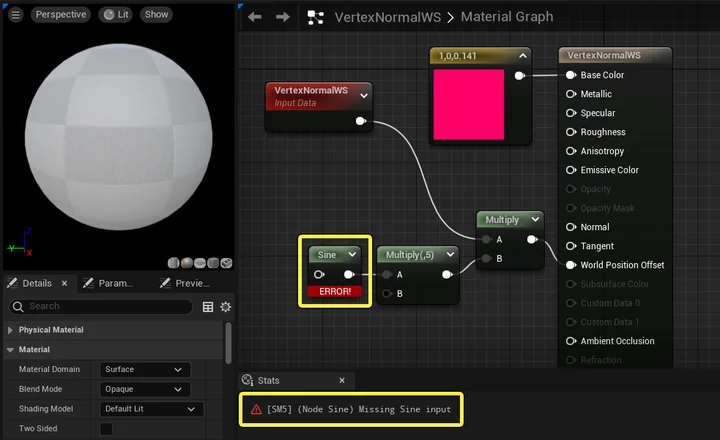
3. **Open the Material Editor:** Double-click the newly created material to open the Material Editor. This is where you’ll define the material’s properties using a node-based graph.
4. **Add a Base Color:**
* Right-click in the Material Editor graph and search for “Constant3Vector.” This node allows you to define a color.
* Click on the color box in the Constant3Vector node to open the color picker and choose a color.
* Connect the output of the Constant3Vector node to the “Base Color” input of the Material Output node (the main node that represents the material).
5. **Add a Texture:**
* Import a texture into your Content Browser by dragging and dropping an image file into it.
* In the Material Editor, right-click and search for “Texture Sample.”
* Select the Texture Sample node and, in the Details panel, set the “Texture” property to the texture you imported.
* Connect the output of the Texture Sample node to the “Base Color” input of the Material Output node. You can also connect it to other inputs like “Roughness” or “Normal” depending on the type of texture.
6. **Adjust Material Properties:**
* Add a “Scalar Parameter” node to control properties like roughness or metallic. Right-click in the Material Editor and search for “Scalar Parameter.”
* Rename the Scalar Parameter node to something descriptive like “RoughnessValue.”
* Connect the output of the Scalar Parameter node to the “Roughness” input of the Material Output node.
* Adjust the “Default Value” of the Scalar Parameter node in the Details panel to change the roughness of the material.
7. **Apply the Material to a Mesh:**
* In the Content Browser, find the static mesh you want to apply the material to.
* Drag the material from the Content Browser onto the mesh in the viewport.
8. **Create a Material Instance:**
* Right-click on your material in the Content Browser and select “Create Material Instance.”
* Open the Material Instance. You’ll see the parameters you created (e.g., RoughnessValue) are now editable.
* Changing the values in the Material Instance will update the material on the mesh in real-time, without modifying the original material.
9. **Dynamic Material Control via Blueprints:**
* Open the Level Blueprint or the Blueprint of the object the material is applied to.
* Create a new variable of type “Material Instance Dynamic.”
* In the Event Graph, use the “Create Dynamic Material Instance” node, selecting your material as the “Source Material.” Set the return value to your Material Instance Dynamic variable.
* Use the “Set Scalar Parameter Value” node to change the value of your “RoughnessValue” parameter. Connect this node to an event, such as a button press or a collision event.
* Apply the Material Instance Dynamic to your mesh using the “Set Material” node.
Warning: Overly complex material graphs can impact performance. Use material instances to optimize performance by sharing the same base material with different parameter values.
Known Issues & Limitations
* The Material Editor can be overwhelming for new users due to the large number of nodes and options available. Breaking down the learning process into smaller steps and focusing on the core concepts is crucial.
* Materials can become complex quickly, making it difficult to manage and debug. Using comments and organizing your material graph can help maintain clarity.
* Some users may experience performance issues with complex materials, especially on lower-end hardware. Optimizing materials by using simpler textures, fewer nodes, and material instances is essential for maintaining performance.
Conclusion
The Unreal Engine Material Editor is a versatile tool for creating a wide range of visual effects. By understanding the basics of creating materials, adding textures, and using parameters, you can create dynamic and interactive surfaces for your 3D models. This is most beneficial for environment artists, technical artists, and game developers who want to create visually stunning and engaging experiences.
